Label and shipping printing is part of the Moto Growth plan. Free plan stores can upgrade from Command Center → Plan & billing.
Moto Agent prints labels through your normal printer sheet, so a DYMO LabelWriter 5XL (or any label printer with its driver installed) works right away. No extra software is needed beyond DYMO Connect.
Set it up once
Go to Command Center → Store → Labels & shipping.
- Pick your roll size for shelf labels (2.25" x 1.25" / DYMO 30334, or 1.125" x 3.5" / 30336).
- Pick your roll size for used-device tags (2.3125" x 4" / DYMO 30256, or 2.125" x 4" / 30323).
- Choose whether your store name prints on labels.
- Fill in the return address and the default package size used for shipping.
- Tap Print test label to confirm the printer is set up. In the print sheet, choose your DYMO and set scale to 100% (no "fit to page").
Barcode / shelf labels
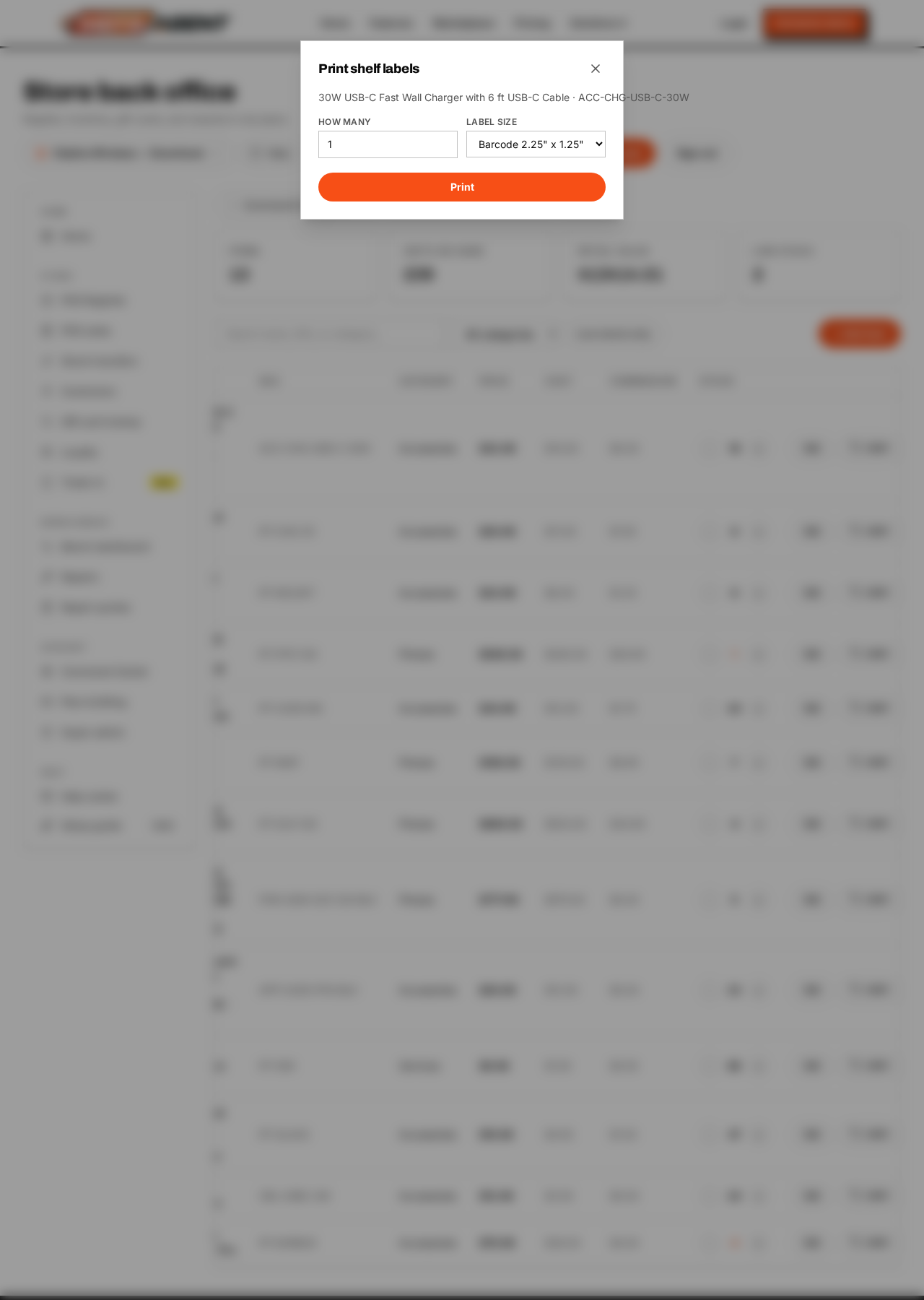
In Inventory, each product row has a Label button. Choose how many copies and print. The label shows the product name, SKU, price and a scannable Code-128 barcode — scanning it at the register adds the item to the cart.
After a delivery, the Moto Receive AI receiving screen has a Print labels button that prints one label per unit you are receiving.
Used-device resale tags
On the Trade-in screen, every saved device check has a Device label button. The tag prints the resale price in large type, the model, storage, color, carrier, condition grade, battery health and IMEI, plus a barcode so scanning rings up that exact device.
You can edit any field in the print window before printing.
Shipping labels for online orders
Open Command Center → Online → Online store → Orders. Any order being shipped has a Shipping label button.
- The customer address is filled in from the order; correct it if needed.
- Enter the package weight and size (defaults come from your settings).
- With a Shippo account connected, tap Get rates to see live USPS, UPS and FedEx prices, then Buy & print — the 4x6 label prints and the tracking number saves onto the order.
- Without Shippo, tap Print address label for a plain 4x6 address label.
To connect Shippo, paste your Shippo API token in Command Center → Store → Labels & shipping. Postage is charged to your own Shippo balance.