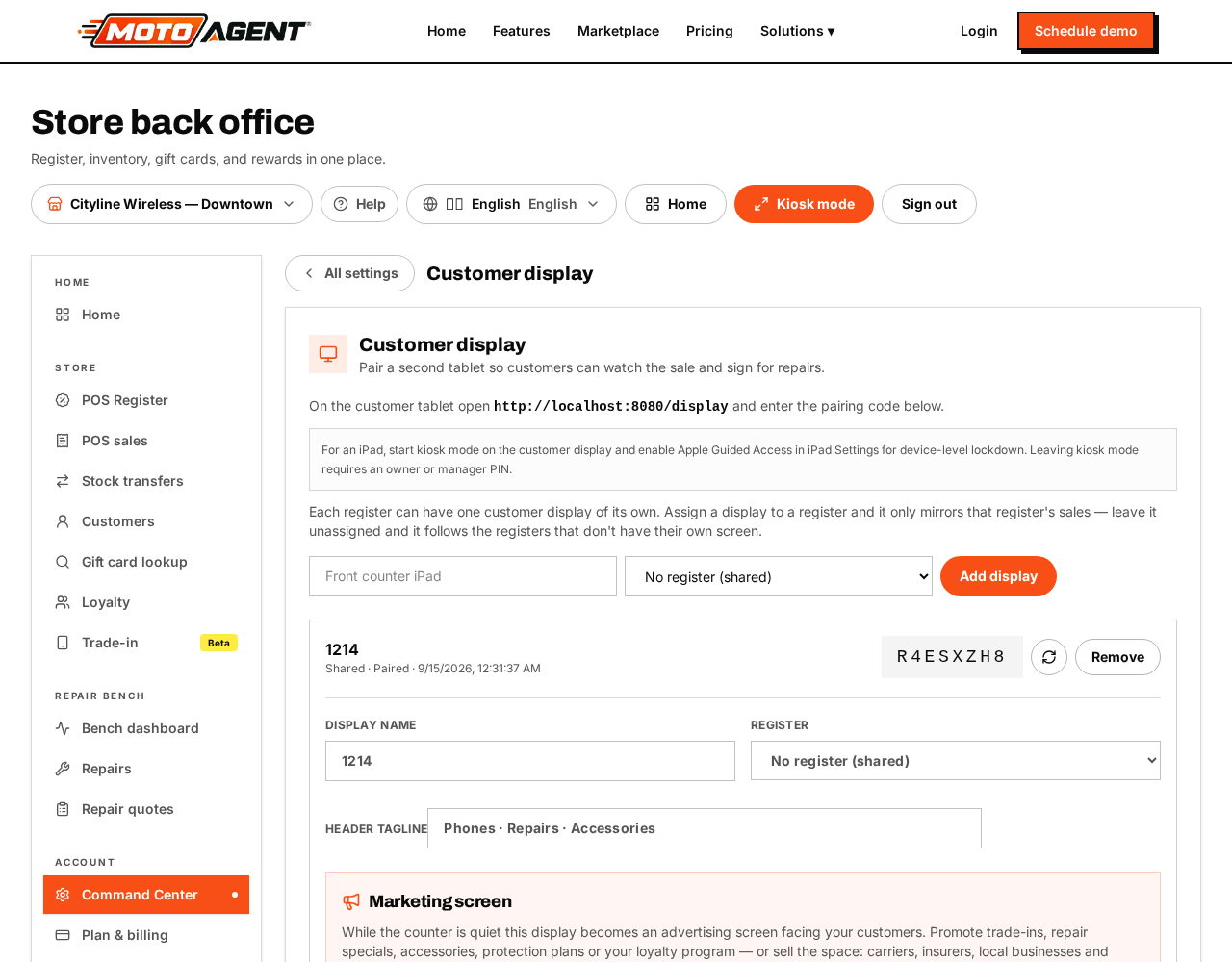
Open Command Center → Store → Customer display to turn the counter screen on, add your logo, a tagline and promotional images.
On the second screen open the /display address for your store. It mirrors the sale live, shows the total, and can capture a signature that is stored with the receipt.
Kiosk mode locks that screen to the display so a customer cannot browse away. Exiting kiosk mode needs a manager PIN. On an iPad, turn on Guided Access for the same effect at the device level.
One display per register. Each checkout register can have its own customer display. When you add a display, pick the register it belongs to — it then mirrors only that register's sales and signature requests. Leave it on No register (shared) and it follows any register that does not have its own screen. A register can only hold one display.
Renaming a display. Open the display card and edit Display name, then press *Save display*. You can change the register it is assigned to in the same place.
Marketing screen. Between sales the display turns into an advertising screen facing your customers. Use the three rotating promotion images for trade-in offers, repair specials, accessories, protection plans or your loyalty program — or resell the slots to carriers, insurers, accessory brands and local businesses for monthly advertising revenue.